☁️ Cloud PBX · Guided tours
Add an extension for a new hire
You will know which number to give a new starter, what each column on the extensions list is for, and how to tell a handset that is switched off from one that is misconfigured.
Where extensions live
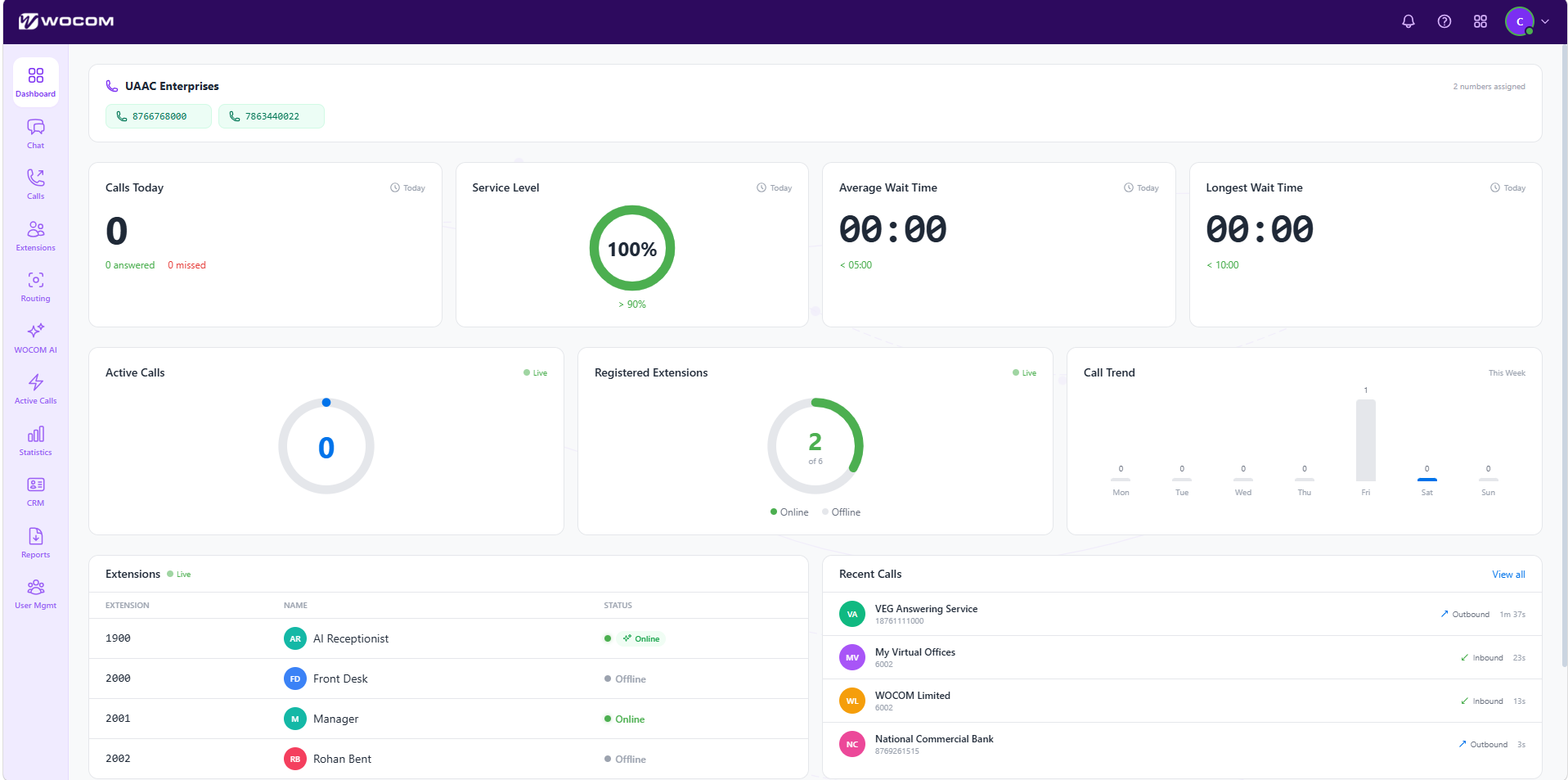
A new person has started and they need a phone. In this walkthrough we will add their extension, tie it to a handset, and check that the phone actually comes online — starting from the Dashboard you land on after signing in.
A new person has started and they need a phone. In this walkthrough we will add their extension, tie it to a handset, and check that the phone actually comes online — starting from the Dashboard you land on after signing in.
Read the walkthrough step by step
- The card across the top names the account and lists the numbers assigned to it. This one has two: 876 676 8000 and 786 344 0022.
- Registered Extensions is the figure to watch. Two of six are online here, which means four handsets are switched off, unplugged, or not yet provisioned.
- The table underneath names them. Extension 1900 is the AI Receptionist; the 2000 range is people. Keeping the AI out of the range you give to staff is worth doing from day one.
- Everything you need is behind Extensions in the left rail. Click it.
So: the Dashboard tells you how many extensions are registered and the left rail is how you reach them. Next we create one.
These are full-size portal screens. On a phone, tap ⤢ Full screen under the picture and turn the handset sideways — the walkthrough zooms in on each control as it reaches it.
Create the extension
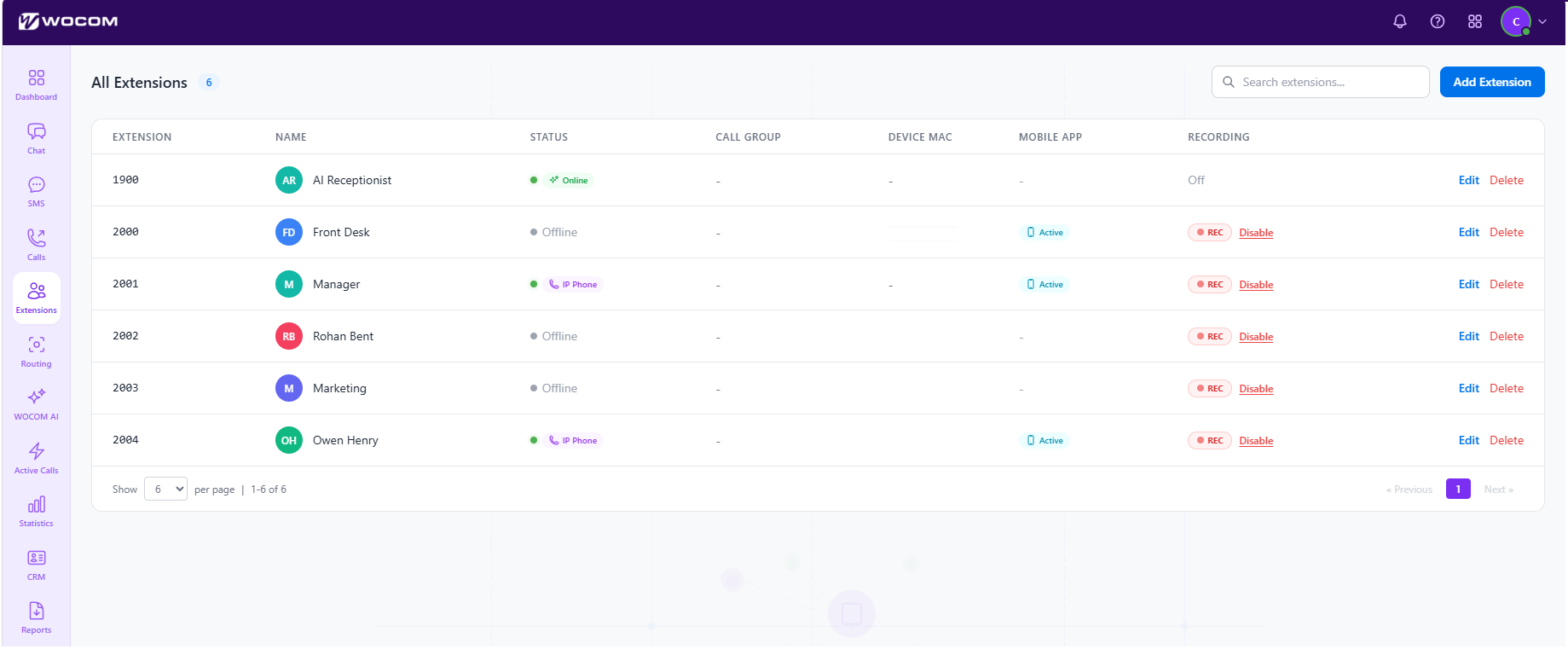
This is the extensions list — every user, desk phone, softphone and ring group on the account. Six of them here.
This is the extensions list — every user, desk phone, softphone and ring group on the account. Six of them here.
Read the walkthrough step by step
- The count beside the heading is your licence check: six extensions in use.
- Add Extension is top right. Click it and the new-extension form opens over the list.
- Give the new starter the next free number in the range you already use. This list runs 2000 to 2004, so they become extension 2005. Keeping people in one unbroken block is what keeps a dial plan readable a year from now.
- Name is what the rest of the team sees on their handset when the call is internal. Use a person for a person and a role for a shared phone — Front Desk and Marketing here are roles, not people, and that is deliberate.
- Device MAC ties the extension to a physical handset. Enter the MAC printed on the base of the phone and it configures itself the next time it boots. Nobody types in a server address.
- Mobile App Active means the same extension is also signed in on a phone in someone pocket, ringing alongside the desk phone. Front Desk and Manager both have it.
- Recording is set per extension, not per account. REC means calls on that extension are recorded, and the Disable link beside it switches recording off for that one person.
So: the next free number, a name the team will recognise, the handset MAC address, and a decision about recording. That is the whole form.
These are full-size portal screens. On a phone, tap ⤢ Full screen under the picture and turn the handset sideways — the walkthrough zooms in on each control as it reaches it.
Confirm the phone came online
The extension exists. Now make sure the handset has registered — because an extension nobody can reach looks exactly like a working one until the first call comes in.
The extension exists. Now make sure the handset has registered — because an extension nobody can reach looks exactly like a working one until the first call comes in.
Read the walkthrough step by step
- The Status column is the answer, and it is live. A green dot with IP Phone beside it means that handset is registered and reachable this second.
- Manager on extension 2001 is online on an IP phone, and so is Owen Henry on extension 2004.
- Offline is not an error by itself — Front Desk on extension 2000 is simply not plugged in. But a phone you have just provisioned that is still offline after a couple of minutes is a network problem, not a portal problem. Check the handset has an address before you change anything here.
- Edit on any row reopens the same fields, plus voicemail PIN, call forwarding and caller ID. Nothing you set while creating the extension is permanent.
- One habit worth forming: the list pages at six rows. On a larger account, raise per page before you go looking for somebody, or you will decide an extension does not exist when it is sitting on page two.
So: green means reachable, grey means the handset has not registered, and Edit reopens everything. The new starter can now make and take calls.
These are full-size portal screens. On a phone, tap ⤢ Full screen under the picture and turn the handset sideways — the walkthrough zooms in on each control as it reaches it.
✅ That is the whole job
You will know which number to give a new starter, what each column on the extensions list is for, and how to tell a handset that is switched off from one that is misconfigured.
Still stuck? Support is on 876 676 8000 or send us the details — quote the extension or the number and the time of the call and it saves a round trip.
The whole tour, in writing
Every step of every chapter, in the order it happens — for skimming, for printing, and for pasting into a ticket.
Where extensions live
A new person has started and they need a phone. In this walkthrough we will add their extension, tie it to a handset, and check that the phone actually comes online — starting from the Dashboard you land on after signing in.
- The card across the top names the account and lists the numbers assigned to it. This one has two: 876 676 8000 and 786 344 0022.
- Registered Extensions is the figure to watch. Two of six are online here, which means four handsets are switched off, unplugged, or not yet provisioned.
- The table underneath names them. Extension 1900 is the AI Receptionist; the 2000 range is people. Keeping the AI out of the range you give to staff is worth doing from day one.
- Everything you need is behind Extensions in the left rail. Click it.
So: the Dashboard tells you how many extensions are registered and the left rail is how you reach them. Next we create one.
Create the extension
This is the extensions list — every user, desk phone, softphone and ring group on the account. Six of them here.
- The count beside the heading is your licence check: six extensions in use.
- Add Extension is top right. Click it and the new-extension form opens over the list.
- Give the new starter the next free number in the range you already use. This list runs 2000 to 2004, so they become extension 2005. Keeping people in one unbroken block is what keeps a dial plan readable a year from now.
- Name is what the rest of the team sees on their handset when the call is internal. Use a person for a person and a role for a shared phone — Front Desk and Marketing here are roles, not people, and that is deliberate.
- Device MAC ties the extension to a physical handset. Enter the MAC printed on the base of the phone and it configures itself the next time it boots. Nobody types in a server address.
- Mobile App Active means the same extension is also signed in on a phone in someone pocket, ringing alongside the desk phone. Front Desk and Manager both have it.
- Recording is set per extension, not per account. REC means calls on that extension are recorded, and the Disable link beside it switches recording off for that one person.
So: the next free number, a name the team will recognise, the handset MAC address, and a decision about recording. That is the whole form.
Confirm the phone came online
The extension exists. Now make sure the handset has registered — because an extension nobody can reach looks exactly like a working one until the first call comes in.
- The Status column is the answer, and it is live. A green dot with IP Phone beside it means that handset is registered and reachable this second.
- Manager on extension 2001 is online on an IP phone, and so is Owen Henry on extension 2004.
- Offline is not an error by itself — Front Desk on extension 2000 is simply not plugged in. But a phone you have just provisioned that is still offline after a couple of minutes is a network problem, not a portal problem. Check the handset has an address before you change anything here.
- Edit on any row reopens the same fields, plus voicemail PIN, call forwarding and caller ID. Nothing you set while creating the extension is permanent.
- One habit worth forming: the list pages at six rows. On a larger account, raise per page before you go looking for somebody, or you will decide an extension does not exist when it is sitting on page two.
So: green means reachable, grey means the handset has not registered, and Edit reopens everything. The new starter can now make and take calls.