☁️ Cloud PBX · Guided tours
Find a call and replay the recording
You will be able to get from "they called on Tuesday" to the recording, the AI summary and the full transcript — and know which of the three to send to whom.
Open Call History
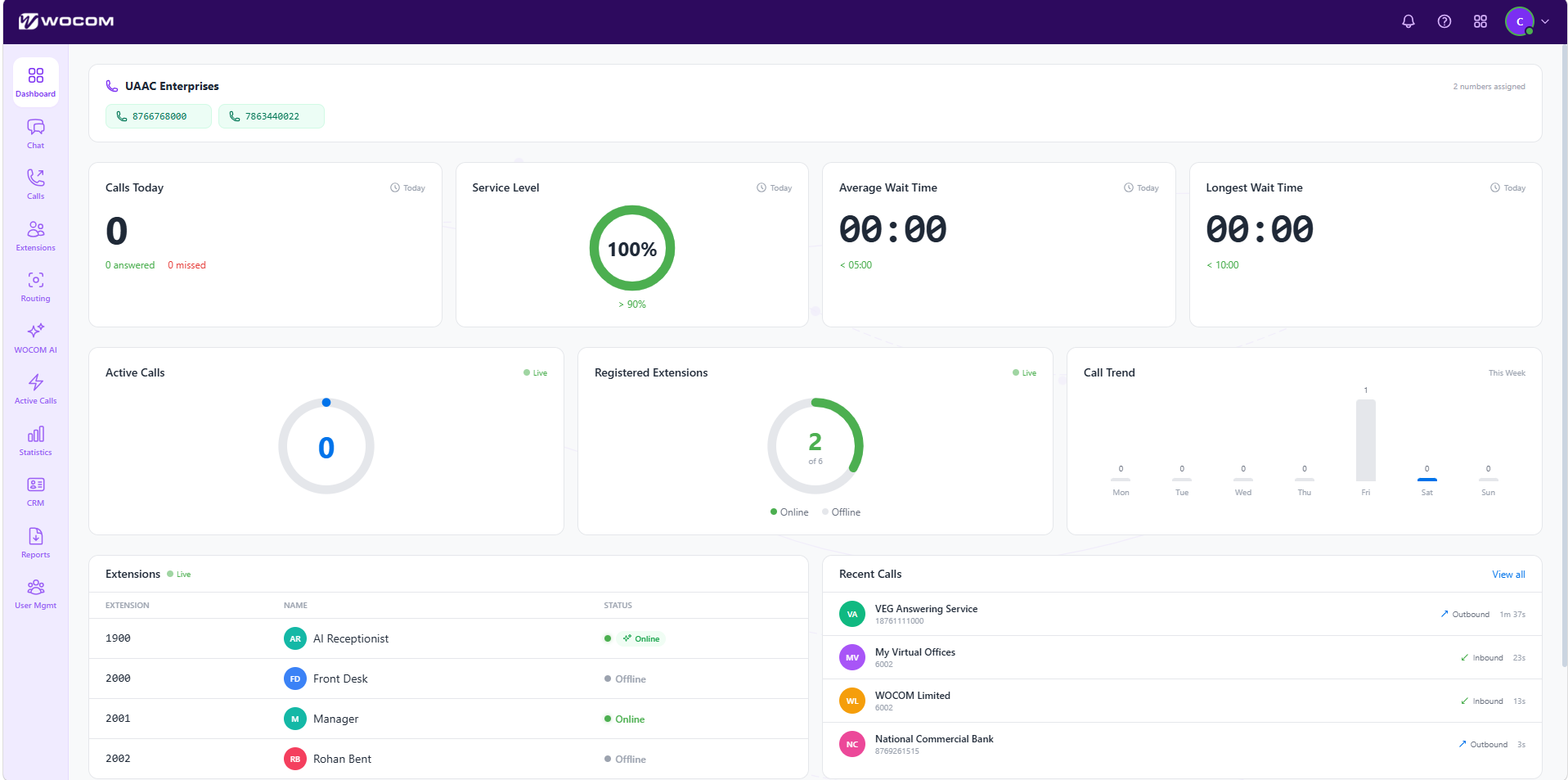
A customer says they called on Tuesday and nobody rang them back. In this walkthrough we will find that call, listen to it, and read what was said.
A customer says they called on Tuesday and nobody rang them back. In this walkthrough we will find that call, listen to it, and read what was said.
Read the walkthrough step by step
- Recent Calls shows the last handful — direction, who, and how long. Useful for a glance. Useless for an argument about last Tuesday.
- View all opens the full log.
- The rail item called Calls gets you to exactly the same place, and that is the one to remember.
So: Recent Calls for a glance, Call History for everything that has ever happened on the account.
These are full-size portal screens. On a phone, tap ⤢ Full screen under the picture and turn the handset sideways — the walkthrough zooms in on each control as it reaches it.
Narrow it down
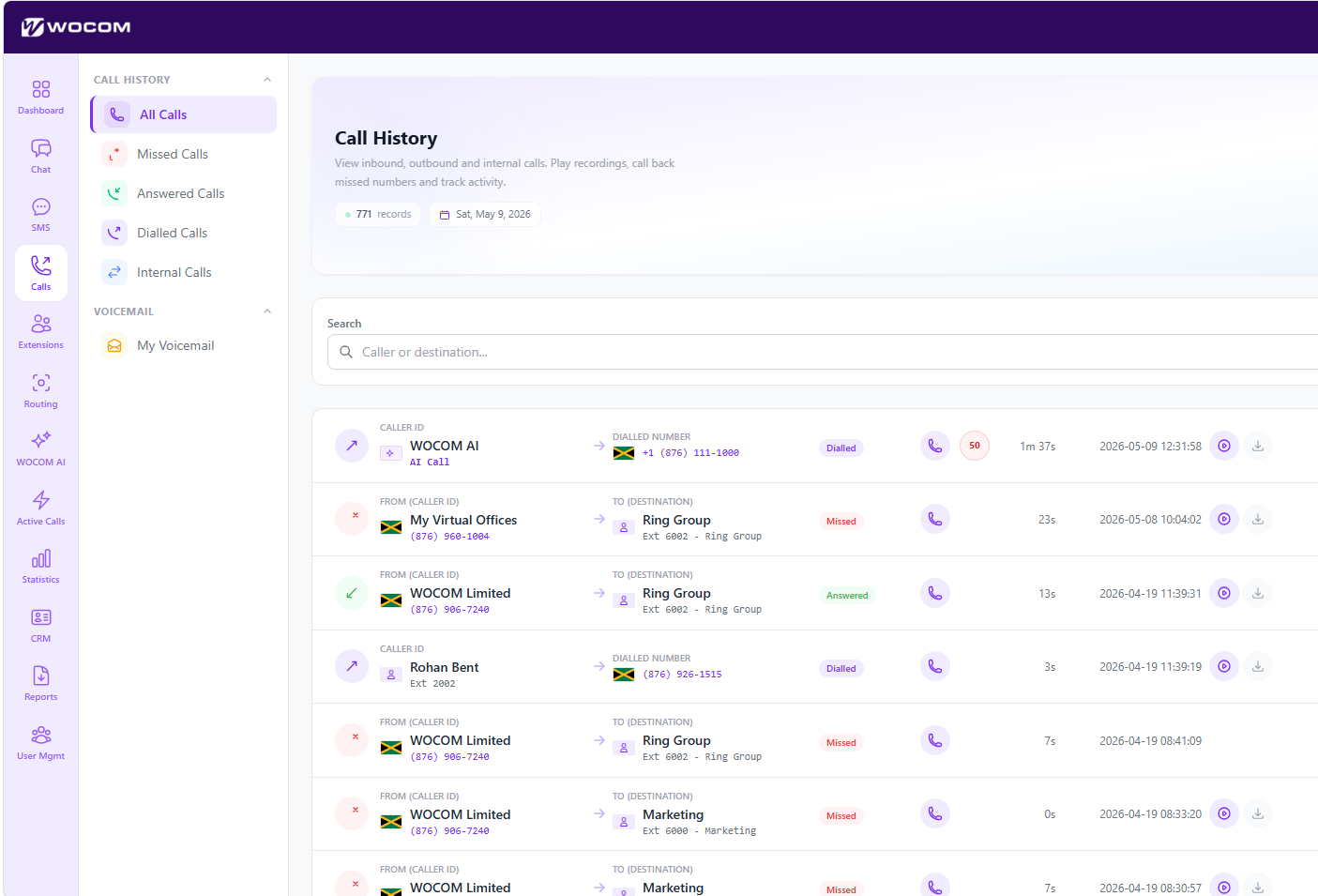
Every inbound, outbound and internal call is in here with its recording attached. The trick is not finding calls — it is finding the one call.
Every inbound, outbound and internal call is in here with its recording attached. The trick is not finding calls — it is finding the one call.
Read the walkthrough step by step
- 771 records on this account, and the date beside it is the range you are looking at. Both figures move as you filter, so they are your check that a filter did what you expected.
- The fastest filter is the list on the left, and Missed Calls is the one to reach for when somebody says they were never rung back. It is the shortest list and it usually holds the answer.
- Search matches the caller ID and the destination, so paste in the customer number. A partial number works — the last four digits are normally enough.
- There it is. My Virtual Offices on 876 960 1004, missed, twenty three seconds, on the eighth of May. It rang the ring group on extension 6002 and ran out.
- Read the status pill and the destination together, always. The pill says answered, missed or dialled; the destination says where the call actually landed. That pairing is how you tell a routing mistake from nobody being at their desk.
So: filter on the left, search by number, then read status and destination side by side. You have the call.
These are full-size portal screens. On a phone, tap ⤢ Full screen under the picture and turn the handset sideways — the walkthrough zooms in on each control as it reaches it.
Listen, download, and follow the score
Finding the call is half of it. The other half is evidence: the recording, and increasingly the score and the transcript that go with it.
Finding the call is half of it. The other half is evidence: the recording, and increasingly the score and the transcript that go with it.
Read the walkthrough step by step
- Two icons sit at the end of every row. The first plays the recording right there, without leaving the page.
- The second downloads it as an MP3. That is the one to use when a recording has to be attached to a complaint or handed to a supervisor.
- A number in a circle is an AI score — fifty out of a hundred on this call. It only appears on calls that have been analysed, and it is your shortcut to the ones worth listening to.
- For the analysis itself, and for the transcript, the rail item is WOCOM AI.
So: play in place, download for evidence, and follow the score through to WOCOM AI. One more stop.
These are full-size portal screens. On a phone, tap ⤢ Full screen under the picture and turn the handset sideways — the walkthrough zooms in on each control as it reaches it.
Score, summary and transcript
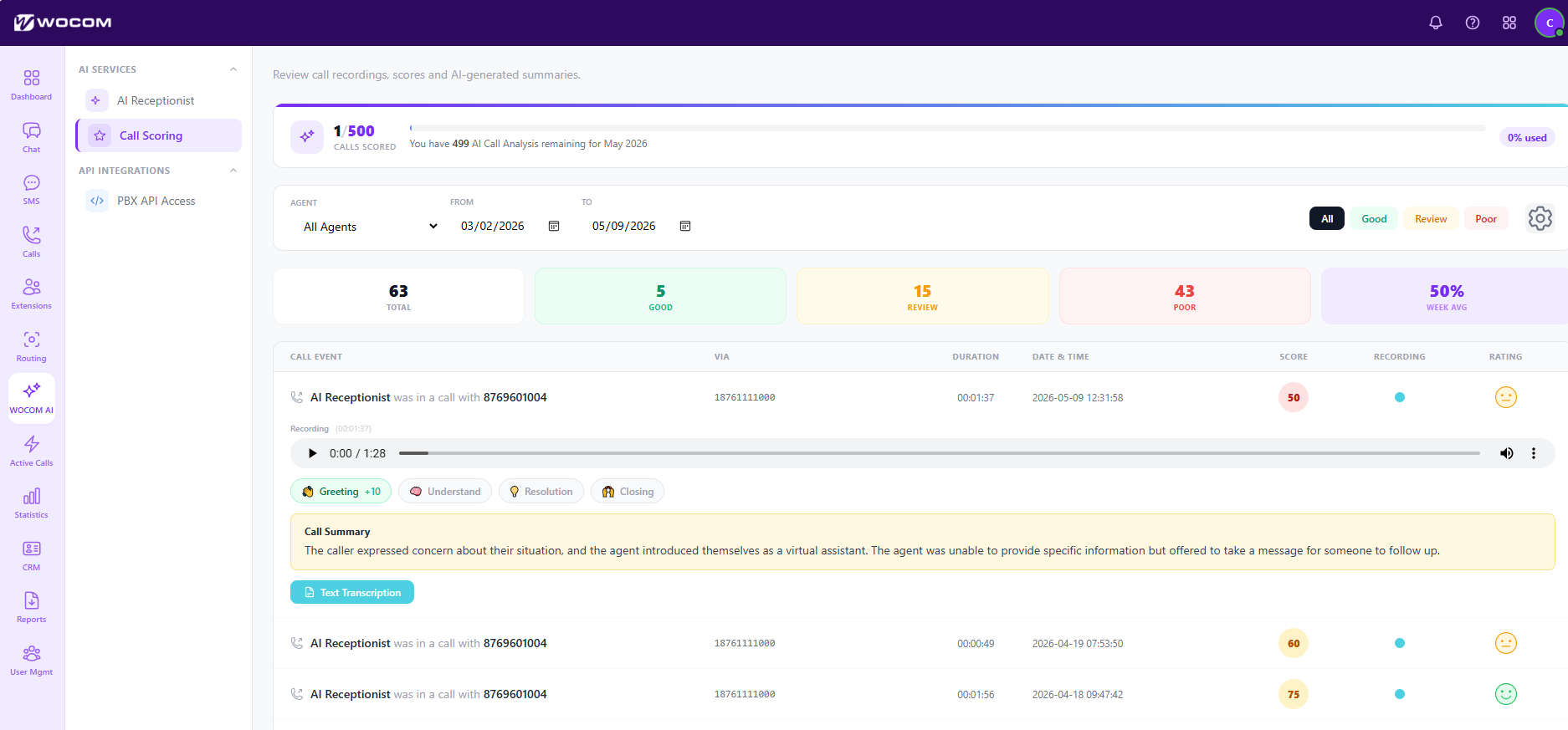
This is Call Scoring, where a recording becomes something you can read in ten seconds instead of listening to for two minutes.
This is Call Scoring, where a recording becomes something you can read in ten seconds instead of listening to for two minutes.
Read the walkthrough step by step
- The bar across the top is your allowance: one call scored out of five hundred this month, with four hundred and ninety nine remaining. Call analysis is metered separately from AI receptionist minutes, so using one does not eat the other.
- Filter by agent and by date range. All Agents over a month is the view to start from. Narrow to one person only when you are preparing a coaching conversation with them.
- Good, Review and Poor are the bands. Review is the useful one: those are the calls that are neither obviously fine nor obviously bad, which is exactly where the coaching is.
- Sixty three calls scored in this range — five good, fifteen for review, forty three poor, and a week average of fifty percent. A spread like that is a process problem, not a person problem.
- Open a row and the recording plays inline, with everything the AI worked out from it underneath.
- Greeting, Understand, Resolution and Closing are the criteria, and each shows what it contributed. Greeting earned ten here and the other three earned nothing. That is the specific, arguable detail a score on its own never gives you.
- The Call Summary is written from the transcript. The caller raised a concern, the agent introduced themselves as a virtual assistant, could not give specific information, and offered to take a message. You can read a hundred of those in the time it takes to listen to five calls.
- And Text Transcription opens the conversation in full, speaker by speaker — searchable, quotable, and the thing to attach when a call turns into a complaint.
So: the score tells you which calls to look at, the criteria tell you why, the summary tells you what happened, and the transcript proves it. Start at Review, not at Poor.
These are full-size portal screens. On a phone, tap ⤢ Full screen under the picture and turn the handset sideways — the walkthrough zooms in on each control as it reaches it.
✅ That is the whole job
You will be able to get from "they called on Tuesday" to the recording, the AI summary and the full transcript — and know which of the three to send to whom.
Still stuck? Support is on 876 676 8000 or send us the details — quote the extension or the number and the time of the call and it saves a round trip.
The whole tour, in writing
Every step of every chapter, in the order it happens — for skimming, for printing, and for pasting into a ticket.
Open Call History
A customer says they called on Tuesday and nobody rang them back. In this walkthrough we will find that call, listen to it, and read what was said.
- Recent Calls shows the last handful — direction, who, and how long. Useful for a glance. Useless for an argument about last Tuesday.
- View all opens the full log.
- The rail item called Calls gets you to exactly the same place, and that is the one to remember.
So: Recent Calls for a glance, Call History for everything that has ever happened on the account.
Narrow it down
Every inbound, outbound and internal call is in here with its recording attached. The trick is not finding calls — it is finding the one call.
- 771 records on this account, and the date beside it is the range you are looking at. Both figures move as you filter, so they are your check that a filter did what you expected.
- The fastest filter is the list on the left, and Missed Calls is the one to reach for when somebody says they were never rung back. It is the shortest list and it usually holds the answer.
- Search matches the caller ID and the destination, so paste in the customer number. A partial number works — the last four digits are normally enough.
- There it is. My Virtual Offices on 876 960 1004, missed, twenty three seconds, on the eighth of May. It rang the ring group on extension 6002 and ran out.
- Read the status pill and the destination together, always. The pill says answered, missed or dialled; the destination says where the call actually landed. That pairing is how you tell a routing mistake from nobody being at their desk.
So: filter on the left, search by number, then read status and destination side by side. You have the call.
Listen, download, and follow the score
Finding the call is half of it. The other half is evidence: the recording, and increasingly the score and the transcript that go with it.
- Two icons sit at the end of every row. The first plays the recording right there, without leaving the page.
- The second downloads it as an MP3. That is the one to use when a recording has to be attached to a complaint or handed to a supervisor.
- A number in a circle is an AI score — fifty out of a hundred on this call. It only appears on calls that have been analysed, and it is your shortcut to the ones worth listening to.
- For the analysis itself, and for the transcript, the rail item is WOCOM AI.
So: play in place, download for evidence, and follow the score through to WOCOM AI. One more stop.
Score, summary and transcript
This is Call Scoring, where a recording becomes something you can read in ten seconds instead of listening to for two minutes.
- The bar across the top is your allowance: one call scored out of five hundred this month, with four hundred and ninety nine remaining. Call analysis is metered separately from AI receptionist minutes, so using one does not eat the other.
- Filter by agent and by date range. All Agents over a month is the view to start from. Narrow to one person only when you are preparing a coaching conversation with them.
- Good, Review and Poor are the bands. Review is the useful one: those are the calls that are neither obviously fine nor obviously bad, which is exactly where the coaching is.
- Sixty three calls scored in this range — five good, fifteen for review, forty three poor, and a week average of fifty percent. A spread like that is a process problem, not a person problem.
- Open a row and the recording plays inline, with everything the AI worked out from it underneath.
- Greeting, Understand, Resolution and Closing are the criteria, and each shows what it contributed. Greeting earned ten here and the other three earned nothing. That is the specific, arguable detail a score on its own never gives you.
- The Call Summary is written from the transcript. The caller raised a concern, the agent introduced themselves as a virtual assistant, could not give specific information, and offered to take a message. You can read a hundred of those in the time it takes to listen to five calls.
- And Text Transcription opens the conversation in full, speaker by speaker — searchable, quotable, and the thing to attach when a call turns into a complaint.
So: the score tells you which calls to look at, the criteria tell you why, the summary tells you what happened, and the transcript proves it. Start at Review, not at Poor.