Configuring QoS for Voice: Step-by-Step Router Guides for Cisco, Ubiquiti and SonicWall
A business calls us and says the same thing almost every time: “our internet is fine, the speed test is fine, but calls break up in the afternoon.”
That is not a bandwidth problem. That is a queueing problem — and it is the single most common fixable cause of poor call quality on an otherwise healthy connection.
Voice is unlike everything else on your network. A file transfer does not care whether a packet arrives now or 400 milliseconds from now; it reassembles and moves on. A voice packet that arrives late is worthless — the moment it was meant to be played has already passed, so the phone discards it and the caller hears a gap. Quality of Service exists to make sure those packets never wait behind a backup upload or somebody’s video call.
This guide covers what to measure, what to configure, and how to prove it worked, on the three platforms we meet most often in Jamaican offices.
Measure before you configure
Do not touch a router until you know which of three numbers is out of range. They fail differently and QoS only fixes two of them.
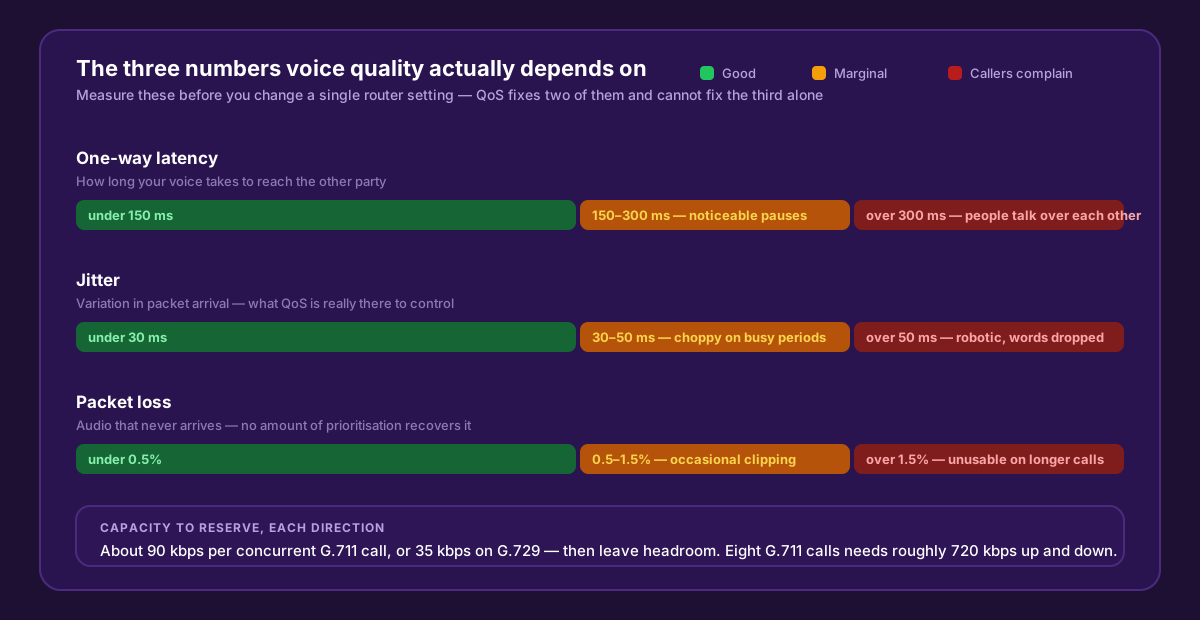
Latency and jitter are queueing problems you can fix at your own edge. Packet loss on the far side of your uplink is not — prioritisation cannot recover a packet that was never delivered.
Two quick tests tell you most of what you need:
- Sustained ping to your provider’s media endpoint during your busiest hour. Watch the spread, not the average — a ping that sits at 40 ms and spikes to 300 ms is a queue filling up.
- Run it again while deliberately saturating the uplink (start a large upload). If latency climbs from 40 ms to 300 ms the moment the upload starts, you have found your fault, and shaping will fix it.
That second test is the important one. In most Jamaican offices the bottleneck is the upload direction, which is typically a fraction of the download speed and is what your voice packets have to climb through on the way out.
The two settings that matter more than everything else
Vendors publish long QoS documents. In practice, on a business broadband or fibre service, two settings deliver almost all of the benefit.
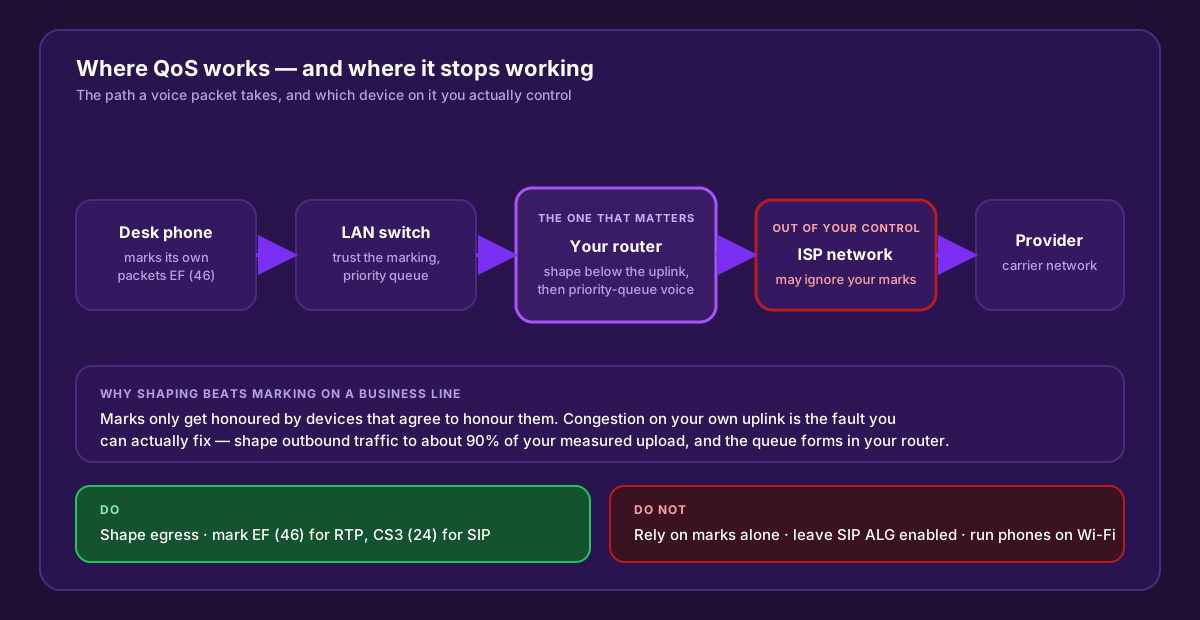
Your marks are a request, not a guarantee — the ISP may ignore them. The queue you build in your own router is the one that always works.
1. Shape your outbound traffic slightly below your actual uplink speed. This is the counter-intuitive one. If you have 10 Mbps upload and you shape to 9 Mbps, the queue forms inside your router, where your priority rules apply — instead of inside the ISP’s equipment, where they do not. Give away 10% of capacity, get control of the whole link.
2. Put voice in a priority queue inside that shaper. Real-time media goes to the front. Everything else shares what is left.
Marking is what makes the second step possible, and the convention is standard:
| Traffic | DSCP | Decimal | Treatment |
|---|---|---|---|
| RTP — the audio itself | EF (Expedited Forwarding) | 46 | Strict priority queue |
| SIP — call signalling | CS3 | 24 | Small guaranteed bandwidth |
| Everything else | Default | 0 | Fair queue with what remains |
Most business IP phones mark their own packets EF already. Softphones on laptops frequently do not — which is why the LAN-side marking rules below matter for any office with staff on apps rather than desk phones.
How much to reserve
Bandwidth per concurrent call, including IP, UDP and RTP headers:
| Codec | Per call, each direction | 8 concurrent calls | 24 concurrent calls |
|---|---|---|---|
| G.711 (uncompressed) | ~90 kbps | ~720 kbps | ~2.2 Mbps |
| G.729 (compressed) | ~35 kbps | ~280 kbps | ~840 kbps |
Size the priority queue for your realistic peak concurrency plus a margin — not for your total user count. A twenty-person office rarely has twenty simultaneous calls; six to eight is typical. Reserving far more than you use starves everything else during busy periods for no benefit.
Cisco IOS — routers and switches
Cisco uses the Modular QoS CLI: classify, then set a policy, then attach it to an interface. Two policies are needed — one inbound on the LAN to mark, one outbound on the WAN to shape and prioritise.
Step 1 — mark voice traffic as it enters from the LAN
ip access-list extended PHONE-RTP
 permit udp 192.168.10.0 0.0.0.255 any range 16384 32767
ip access-list extended PHONE-SIP
 permit udp 192.168.10.0 0.0.0.255 any eq 5060
 permit tcp 192.168.10.0 0.0.0.255 any eq 5060
!
class-map match-all MARK-RTP
 match access-group name PHONE-RTP
class-map match-all MARK-SIP
 match access-group name PHONE-SIP
!
policy-map LAN-IN-MARK
 class MARK-RTP
  set dscp ef
 class MARK-SIP
  set dscp cs3
!
interface GigabitEthernet0/0/1
 description LAN
 service-policy input LAN-IN-MARK
Adjust the subnet and the RTP port range to match your provider’s. If your handsets already mark correctly you can skip this and simply trust their marking.
Step 2 — shape the WAN and give voice strict priority
class-map match-any VOICE-RTP
 match dscp ef
class-map match-any VOICE-SIG
 match dscp cs3
!
policy-map WAN-QOS
 class VOICE-RTP
  priority 1000            ! kbps — 8 G.711 calls plus headroom
 class VOICE-SIG
  bandwidth 128
 class class-default
  fair-queue
!
policy-map WAN-SHAPE
 class class-default
  shape average 9000000    ! 90% of a 10 Mbps upload
  service-policy WAN-QOS
!
interface GigabitEthernet0/0/0
 description WAN
 service-policy output WAN-SHAPE
Step 3 — trust the marking on the switch
interface range GigabitEthernet1/0/1 - 24
 auto qos voip trust
! or, on platforms without AutoQoS:
! mls qos trust dscp
Verify
show policy-map interface GigabitEthernet0/0/0
show mls qos interface GigabitEthernet1/0/5 statistics
What you want to see: packets counted in the VOICE-RTP class, and zero drops in the priority queue while class-default shows drops during busy periods. Drops in class-default are the shaper doing its job. Drops in the priority queue mean it is undersized.
Ubiquiti — UniFi gateways and EdgeRouter
UniFi (Cloud Gateway, UDM, USG)
UniFi exposes this as Smart Queues rather than manual classes, and for most offices that is genuinely enough — it applies fair queueing with active queue management, which keeps latency low under load.
- Measure your real throughput at a quiet moment. Do not trust the plan headline.
- In the Network application, open Settings → Internet and select your WAN.
- Enable Smart Queues and enter download and upload limits at roughly 90–95% of measured — this is the shaping step from earlier.
- Under Settings → Traffic Management, create a rule that prioritises your phones or the voice VLAN.
- Put phones on their own VLAN, and make sure that VLAN is not subject to any rate limit you applied elsewhere.
Know the trade-off: on most UniFi gateways, enabling Smart Queues disables hardware offloading, which lowers the maximum throughput the gateway can push. On a 100 Mbps service that is irrelevant. On a gigabit service, check your model’s shaped-throughput figure before enabling it.
EdgeRouter (EdgeOS CLI)
EdgeOS gives you the full classifier, which is worth using when you have a fixed number of channels to protect:
configure

set traffic-policy shaper WAN-OUT bandwidth 9mbit
set traffic-policy shaper WAN-OUT default bandwidth 60%
set traffic-policy shaper WAN-OUT default queue-type fair-queue

set traffic-policy shaper WAN-OUT class 10 description RTP
set traffic-policy shaper WAN-OUT class 10 bandwidth 30%
set traffic-policy shaper WAN-OUT class 10 priority 7
set traffic-policy shaper WAN-OUT class 10 match RTP ip dscp 46

set traffic-policy shaper WAN-OUT class 20 description SIP
set traffic-policy shaper WAN-OUT class 20 bandwidth 5%
set traffic-policy shaper WAN-OUT class 20 priority 6
set traffic-policy shaper WAN-OUT class 20 match SIP ip dscp 24

set interfaces ethernet eth0 traffic-policy out WAN-OUT

commit
save
exit
Verify with show queueing and show interfaces ethernet eth0 queueing. If the RTP class shows no traffic, your phones are not marking — add a firewall modify rule to set DSCP 46 on the RTP port range as it enters from the LAN.
SonicWall — VoIP settings first, then bandwidth management
SonicWall deserves its own warning: the default VoIP handling causes more call problems than the queueing does. Fix that before touching QoS.
Step 1 — the VoIP settings page
- Enable Consistent NAT — on. This keeps the same outside port mapping for your phones, which is what lets return media find its way back.
- SIP Transformations — normally off when your provider handles NAT traversal, which most modern providers do. Leaving the firewall rewriting SIP headers is the classic cause of one-way audio and calls that connect but drop after 30 seconds.
- SIP B2BUA — off unless your provider specifically asks for it.
- Raise the UDP connection timeout to at least 300 seconds so registrations survive idle periods.
Step 2 — bandwidth management
- Under Firewall Settings → Bandwidth Management, switch BWM to Advanced.
- Set the egress and ingress link speeds to your measured throughput, not the plan figure — this is SonicWall’s equivalent of shaping.
- Create an address object for your phone subnet and a service group containing SIP (5060) and your provider’s RTP range.
- On the LAN → WAN access rule for that service group, open the BWM tab: enable egress and ingress bandwidth management, assign priority 0 (highest), set a guaranteed percentage covering your peak concurrent calls, and a maximum a little above it.
- On the QoS tab of the same rule, set DSCP marking to Explicit → 46 for media so downstream devices see the correct class.
Verify under the monitoring section: the BWM monitor shows per-priority utilisation, and your voice rule should show traffic flowing at priority 0 with no drops while lower priorities absorb the congestion.
The five mistakes that undo all of this
- Leaving SIP ALG enabled. Marketed as a helper, in practice it rewrites SIP messages and breaks registrations, causes one-way audio, and drops calls at the 30-second mark. Turn it off on every platform unless your provider explicitly requires it.
- Shaping at the plan speed instead of the measured speed. If the link actually delivers 8 Mbps up and you shape at 10, the queue never forms in your router and nothing you configured applies.
- Running desk phones over Wi-Fi. Wi-Fi adds jitter that no router-side QoS can remove. Cable the phones. If you must use wireless, make sure WMM is enabled and the access point is not oversubscribed.
- Marking without queueing. A DSCP value on its own does nothing. Some device has to act on it — that device is your router.
- Expecting QoS to fix loss. If packets are being lost upstream of your router, prioritisation cannot help. That is a circuit problem, and the fix is a better circuit or a second path.
When QoS is not the answer
Configure everything above and calls still break up? Then the fault is not in your queue. The usual causes are packet loss on the access circuit itself, a congested shared segment at the ISP, or simply not enough upload capacity for the concurrency you run. That is a connectivity conversation, not a router one — see our guides on how much bandwidth VoIP actually needs and dedicated internet access for business voice, and consider a second connection for failover.
It is also worth checking the codec in use before you buy more bandwidth: switching from G.711 to G.729 cuts per-call bandwidth by roughly 60%, at a small cost in audio quality. Our codec comparison covers when that trade is worth making.
Get it configured properly the first time
WOCOM runs its own carrier network, so when we hand over a Flexi-SIP trunk or a Cloud PBX we tell you the exact RTP range, the recommended codec and the concurrency to reserve — and our engineers will walk your IT team or your integrator through the router configuration on the day of cut-over. Local engineers, local numbers, no offshore queue.
Call 876-906-7240 or get in touch and we will review your current QoS configuration against the calls you are actually running.
Continue exploring
Ready to upgrade your communications?
Talk to our team about the right solution for your business.
Book a Demo Contact SalesEverett Kildare is WOCOM's voice and infrastructure specialist, with more than 25 years of experience designing and running carrier-grade voice, SIP and virtualization infrastructure. Holding a BSc in Information Technology, he has built, secured and migrated phone systems for businesses of every size. Everett writes WOCOM's technical coverage of SIP trunking, cloud PBX, contact centres, business continuity and migration.