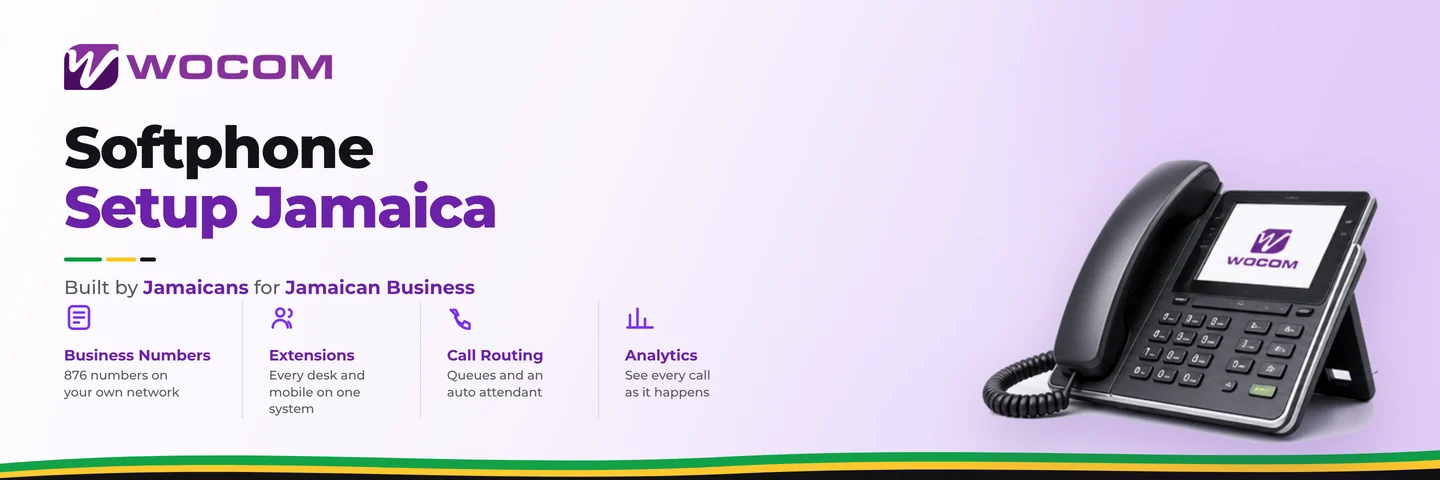
Softphone Setup Jamaica: Make Business Calls From Your Laptop or Mobile With Cloud PBX
Desk phones are expensive, fragile, and tied to a single location. If your team works remotely, rotates between branches, or simply spends more time at a laptop than behind a fixed handset, a softphone lets them make and receive professional business calls from any device — laptop, tablet, or mobile — using the same Cloud PBX extension they would have on a physical phone.
This guide walks through softphone setup for WOCOM Cloud PBX users across Jamaica: what you need, how to configure it, which features carry across from a desk phone, and the handful of situations where traditional hardware still makes more sense.
What Is a Softphone?
A softphone is a software application that uses your internet connection to place and receive calls using the SIP protocol — the same standard that powers business-grade VoIP worldwide. Instead of pressing physical buttons, you click or tap on a screen. Instead of a handset, you speak through a headset or your device's built-in microphone and speakers.
From the caller's perspective, nothing changes. Your business number rings as normal. Calls display your registered business caller ID. Every Cloud PBX feature — extensions, call transfers, voicemail, hold music, conference bridges — works identically whether you are at a desk in New Kingston or on a laptop in Montego Bay.
What You Need Before You Start
Before installing anything, confirm these three things are in place:
- SIP credentials from WOCOM: Your extension number, SIP username, SIP password, and server address. These are issued when your Cloud PBX account is created. If you do not have them, the WOCOM support team will generate a set for your extension immediately.
- A reliable internet connection: VoIP calls use roughly 85 kbps per active call at standard quality (G.711 codec). A 5 Mbps connection handles dozens of simultaneous calls comfortably. For staff working on mobile data, a 4G LTE signal is sufficient for one or two concurrent calls.
- A headset with a microphone: Built-in laptop speakers and microphones create echo and background noise pickup. Even a J$1,500 USB headset dramatically improves call quality. Bluetooth headsets work well on mobile softphones, provided the Bluetooth connection itself is stable.
How to Install and Configure Your Softphone
WOCOM Cloud PBX is compatible with any standards-compliant SIP softphone. The most commonly used options across Jamaican businesses are:
- Zoiper (Windows, Mac, iOS, Android): The free tier supports SIP calling, video, and presence status. Most small businesses run the free version without issue.
- Linphone (Windows, Mac, Linux, iOS, Android): Fully open-source with no licence cost, and strong support for encrypted calling.
- MicroSIP (Windows only): Extremely lightweight with low resource use — a good choice for older laptops still in service.
- Grandstream Wave (iOS, Android): A clean mobile interface that integrates well with Grandstream desk phones if you run a mixed-device environment.
Configuration steps, using Zoiper as an example:
- Download and install Zoiper from the provider's official website.
- Open the app and select Add Account > SIP Account.
- Enter your SIP username in the format extension@yourdomain — WOCOM will confirm the exact format for your account.
- Enter your SIP password.
- Set the Domain / Host field to the WOCOM SIP server address provided in your welcome email.
- Leave transport as UDP unless WOCOM has advised TLS for your setup.
- Click Register. A green tick or "Registered" status confirms you are live on the PBX.
On mobile the process is identical — tap through the same fields. Enable Push Notifications so incoming calls wake the app even when it is running in the background. Without push notifications enabled, your mobile softphone will miss calls when the screen is off.
Features That Work on a Softphone Extension
Everything available on a physical desk phone carries across to a softphone extension, including:
- Inbound and outbound calls on your business number
- Internal extension dialling for staff-to-staff calls at zero cost
- Blind and warm transfers to other extensions or external numbers
- Call hold with music-on-hold played to the waiting caller
- Three-way conferencing initiated from the softphone interface
- Voicemail access — dial your voicemail extension or retrieve messages via email notification
- DTMF tones for navigating IVR menus when dialling out to banks or government lines
- Do Not Disturb (DND) status visible to supervisors in the WOCOM admin panel
If your WOCOM plan includes call recording, recordings are captured at the server level — so calls made from a softphone are recorded exactly as calls from a desk phone, with no extra configuration required on the device.
Getting the Best Call Quality on a Softphone
Softphone quality issues almost always trace to one of three causes: network congestion, codec mismatch, or hardware problems. Here is how to address each:
- Choppy or cutting audio: Your router may not be prioritising voice traffic during busy hours. Enable QoS (Quality of Service) and set SIP and RTP traffic to high priority. Most Ubiquiti, TP-Link, and Mikrotik routers support this in their advanced settings.
- Codec mismatch: Ensure your softphone is set to use G.711 (also labelled PCMU or PCMA) as its first codec preference. G.729 uses less bandwidth but can introduce artefacts on lower-end hardware and requires a licence on some systems.
- Echo on the call: Switch from built-in speakers to a headset. If echo persists, enable the acoustic echo cancellation setting in your softphone's audio preferences — this is usually a single checkbox.
- Calls not connecting at all: Corporate firewalls sometimes block UDP port 5060 (SIP signalling) and the RTP media ports, typically 10000–20000. Ask your IT team to allow those ports, or switch the softphone transport to TCP/TLS, which passes through most firewalls without extra firewall rules.
When a Desk Phone Still Makes More Sense
Softphones are not the right tool for every role. Consider keeping physical handsets for:
- Receptionists and front-desk staff who handle high call volumes for hours at a stretch — a dedicated handset with a quality headset jack is more ergonomic for sustained use.
- Shared workstations where multiple staff use the same desk on different shifts — a desk phone with hot-desking support is simpler to manage than logging in and out of a softphone app.
- Power-outage continuity: A PoE desk phone running off a UPS keeps ringing when the laptop battery is dead. A softphone depends on the device being charged and the internet connection being live simultaneously.
- Noisy environments such as warehouses, workshops, or outdoor sites in Kingston's industrial zones — ruggedised DECT cordless handsets handle ambient noise far better than a laptop microphone.
Most WOCOM Cloud PBX customers run a hybrid setup: desk phones at fixed workstations, softphones on laptops for managers and remote staff, and the WOCOM mobile app on smartphones for field teams. All extensions sit on the same PBX, so transfers and internal calls work seamlessly across every device type.
Ready to Drop the Desk Hardware?
If your staff are already working from laptops or mobiles, there is no reason to spend money on desk hardware you do not need. WOCOM Cloud PBX gives every extension the flexibility to work from wherever your team is — with the same professional call quality, the same business number, and the same full feature set.
Call us at 876-300-9091, send a WhatsApp message, or visit wocomja.com to get your softphone credentials configured today. Our team handles the setup call so your staff are making and receiving business calls within the hour — no technician visit required.
Continue exploring
Ready to upgrade your communications?
Talk to our team about the right solution for your business.
Book a Demo Contact SalesEverett Kildare is WOCOM's voice and infrastructure specialist, with more than 25 years of experience designing and running carrier-grade voice, SIP and virtualization infrastructure. Holding a BSc in Information Technology, he has built, secured and migrated phone systems for businesses of every size. Everett writes WOCOM's technical coverage of SIP trunking, cloud PBX, contact centres, business continuity and migration.